Row
You work with rows in the table's Data tab. Changes to rows are highlighted and kept locally until you press ⌘ + S1 to commit them to the server. See Commit changes.
Insert row
- Open the table's Data tab.
- Click + Row at the bottom of the table, press
⌘ + I, or double-click the empty area below the last row. - Enter the values of the new row.
- Press
⌘ + Sto commit the change.
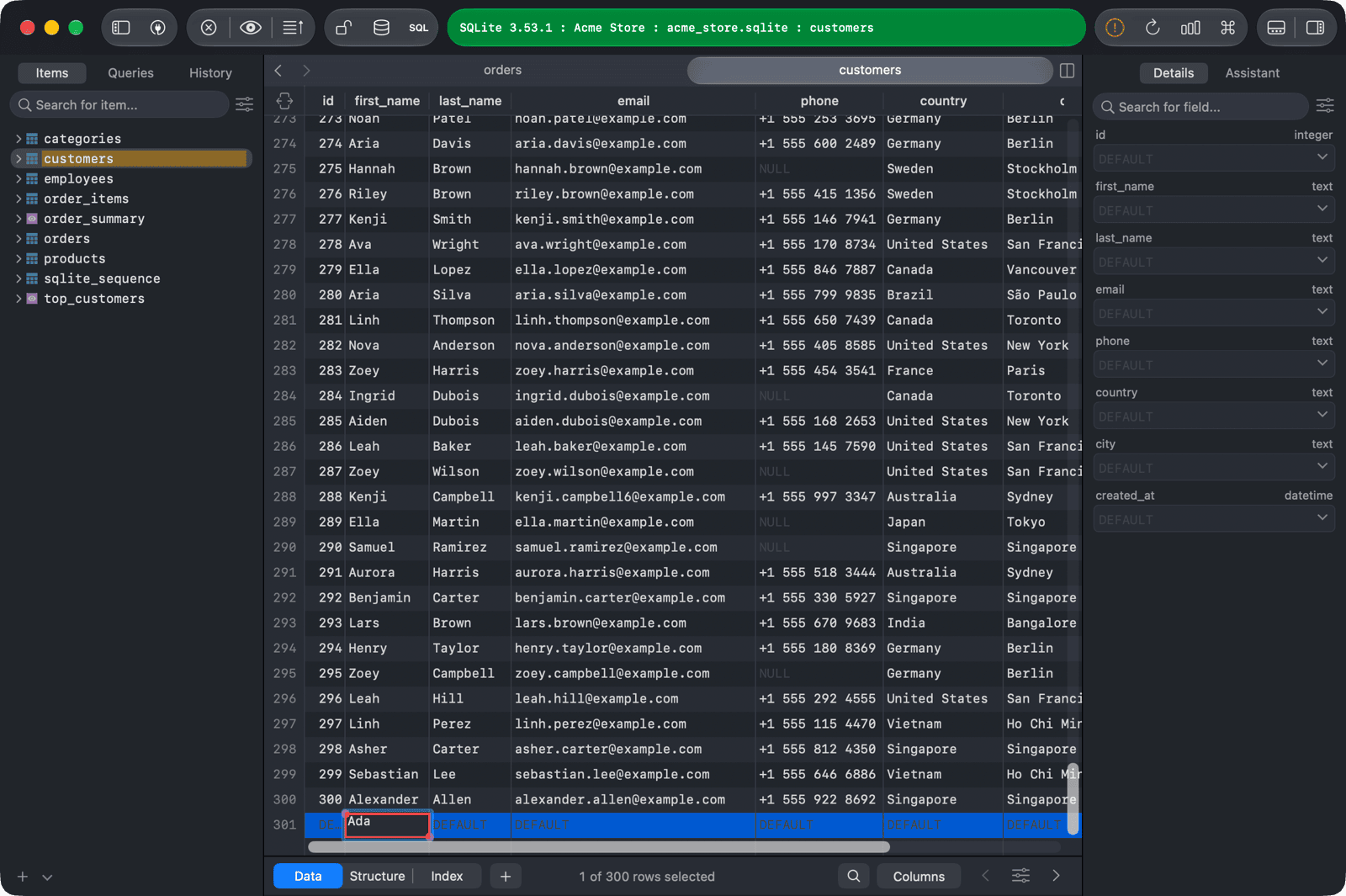
Duplicate row
- Select one or more rows.
- Right-click and choose Duplicate, or press
⌘ + D. You can also copy rows with⌘ + Cand paste them with⌘ + V. - Press
⌘ + Sto commit the change.
Edit row
To edit a cell, double-click it and edit the value inline, then press ⌘ + S to commit the change.
To set a special value, right-click the cell and open Set Value, or select the cell and press ⌥ + Return. Depending on the column type, you can choose EMPTY, NULL, DEFAULT, NOW() (GETDATE() or GETUTCDATE() on SQL Server), Date Picker..., or Add a file... to load a file into a binary column.
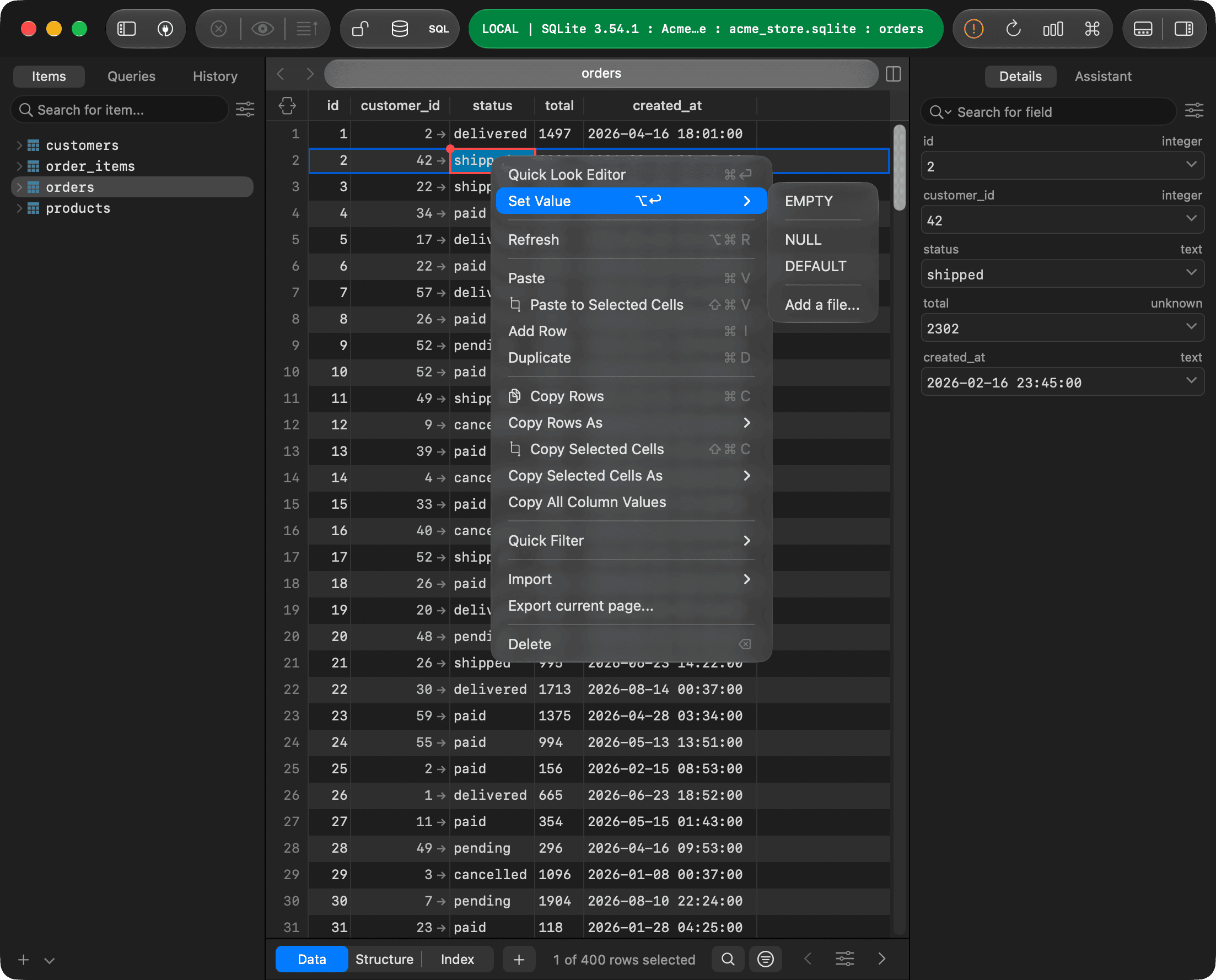
To edit all values of a row in a form, press Space to show the right sidebar. This is helpful when a table has many columns, or when you edit several rows at once.
Select cells
Click a cell and drag to select a rectangular range of cells. Use the arrow keys to move between cells, and press Return to edit the selected cell.
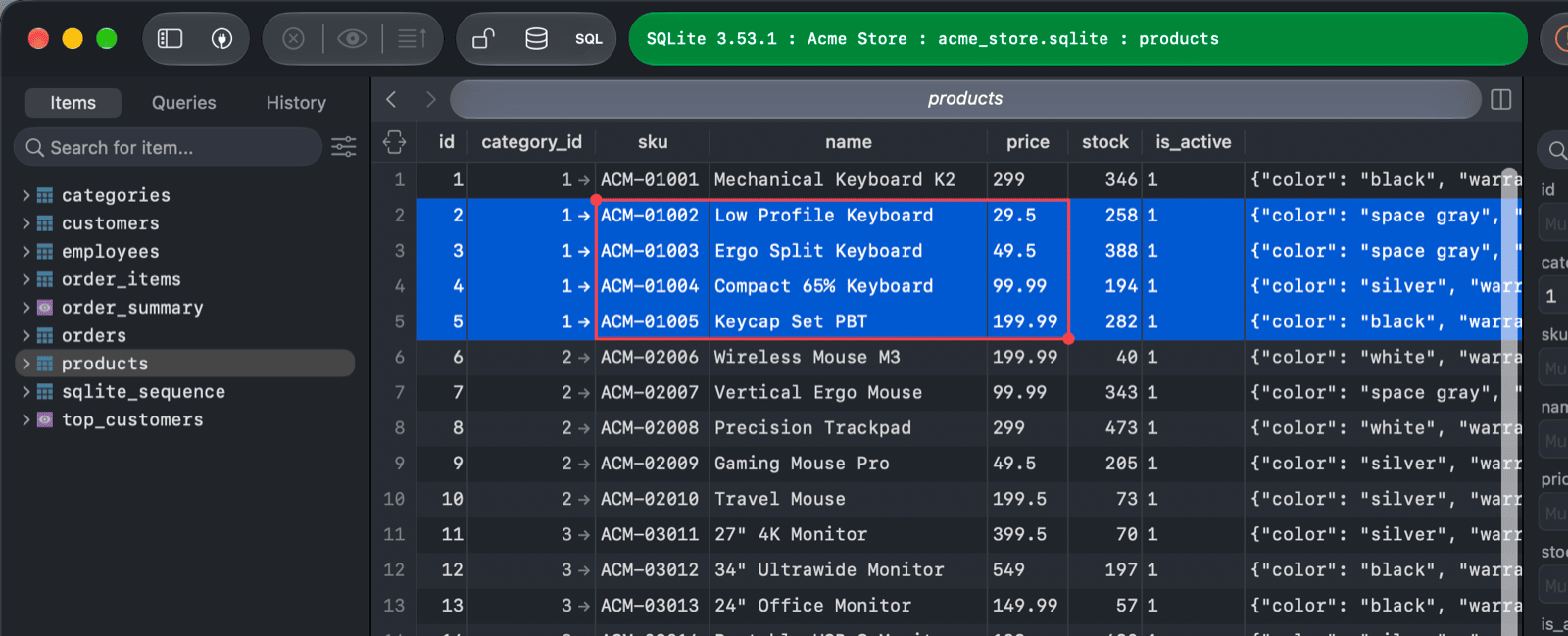
With a range of cells selected, you can:
- Copy only the selected cells with Copy Selected Cells (
⌘ + Shift + C). - Paste copied values into the selected cells with Paste to Selected Cells (
⌘ + Shift + V). The values fill the range from its top-left cell. If the copied values and the range have different sizes, TablePlus tells you what it skipped. - Right-click inside the range and choose Set Value to set every selected cell to
EMPTY,NULL,DEFAULTor another quick value. - Edit the selected rows together in the right sidebar, which shows every row the range covers.
To change the size of the range, drag one of the round handles at its corners. Press ⌘ + ↑ or ⌘ + ↓ to go to the first or last row and stay in the same column.
Sort rows
Click a column header to sort the table by that column:
- Click once to sort in descending order.
- Click again to sort in ascending order.
- Click a third time to remove the sort.
You can also right-click a column header and choose Sort Ascending, Sort Descending, or Remove sort. To sort by several columns, right-click each column header and choose Sort multiple Columns > Ascending or Descending.
Quick Look
Quick Look shows the value of a cell in a larger editor. It is helpful for long text, JSON, and binary values.
To open it, right-click the cell and choose Quick Look Editor, select the cell and press ⌘ + Return, or click the cell with the middle mouse button. See Quick Look.
Follow a foreign key
Cells in a foreign key column show an arrow. Click the arrow to open the referenced table, filtered to the referenced row.
Delete row
- Select one or more rows.
- Press
Delete, or right-click and choose Delete. - Press
⌘ + Sto commit the change.
Copy data
Right-click a cell to copy data from the table:
- Copy Rows (
⌘ + C): copy the selected rows. - Copy Rows As: copy the selected rows in another format.
- Copy Selected Cells (
⌘ + Shift + C): copy only the selected cells. - Copy Selected Cells As: copy the selected cells in another format.
- Copy All Column Values: copy every value of the clicked column.
The Copy Rows As and Copy Selected Cells As menus support these formats:
- Plain Text
- JSON
- HTML
- Markdown Table
- CSV
- CSV with Header
- INSERT Statement
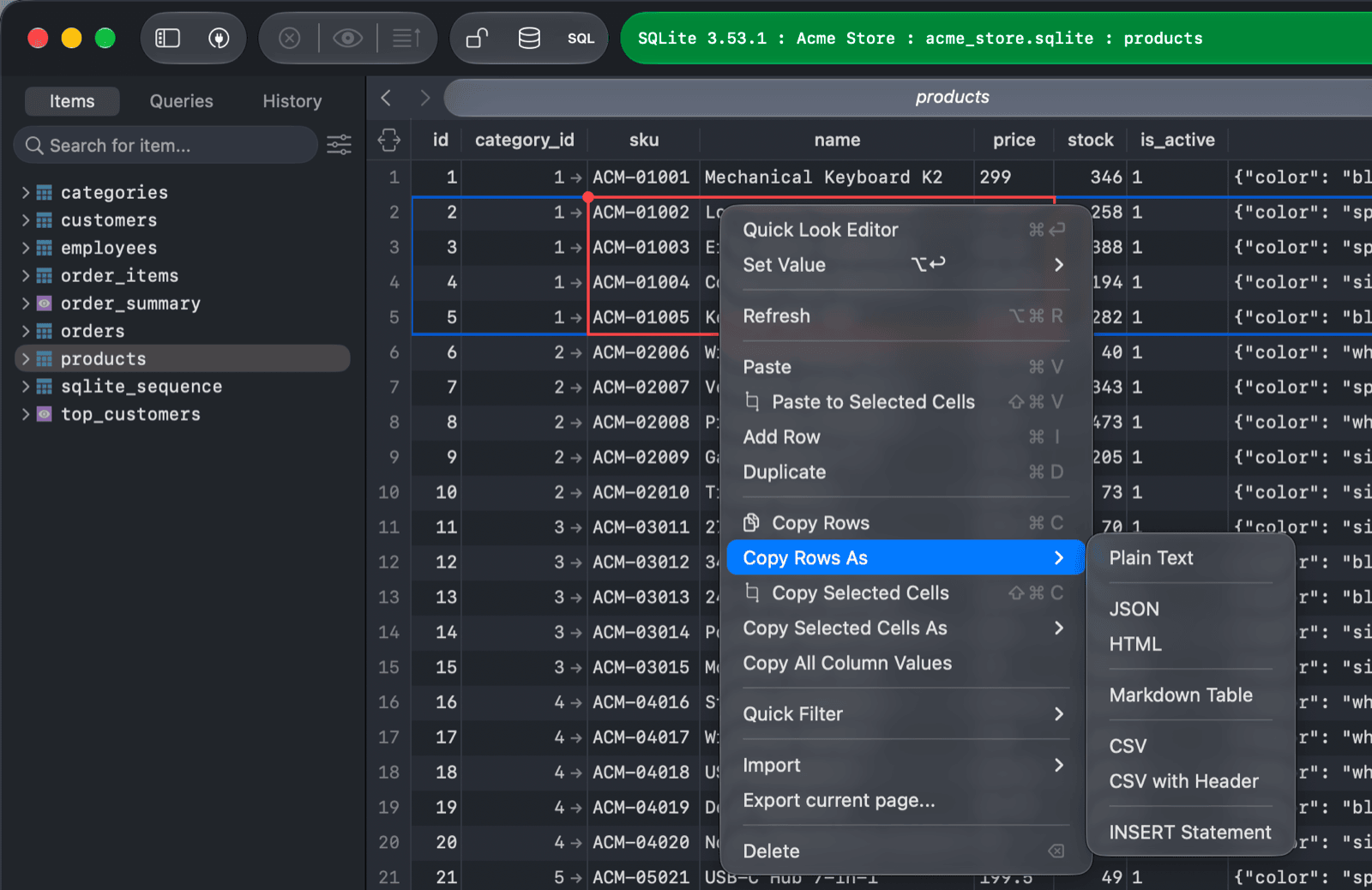
The same menu also lets you Refresh the data, Paste rows, start a Quick Filter from the clicked value (see Filter), Import data, and Export current page....
-
On Windows and Linux, use
Ctrl + S. ↩︎