ER Diagram
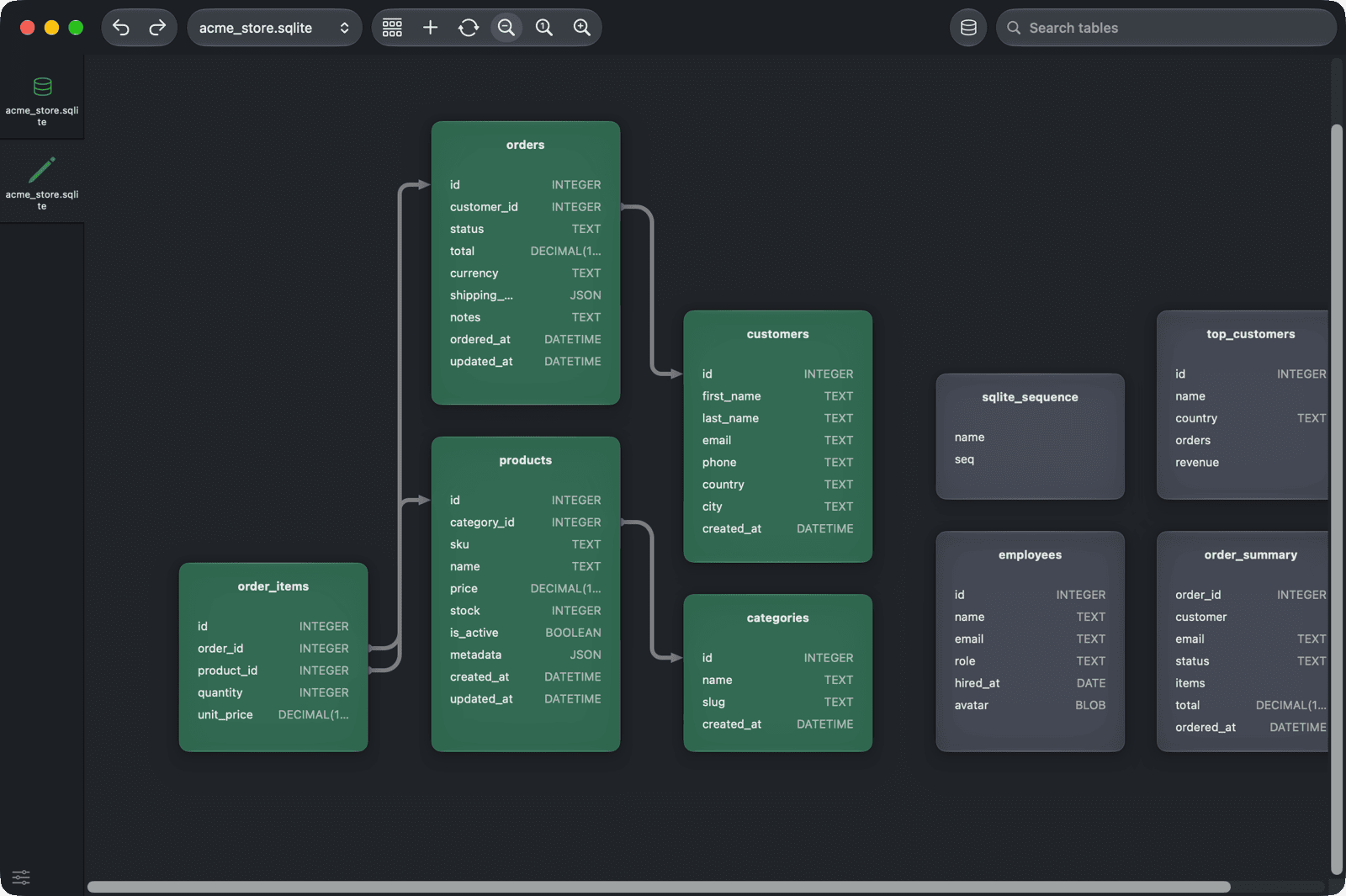
The diagram shows the tables of a database (or schema) as an ER diagram: each table with its columns, and a line for each foreign key between them. You can also use it to change the structure: add tables, edit columns and indexes, and create or remove foreign keys.
Open the diagram
Use one of these:
- Navigate to Tools > Show Diagram.
- Right-click an item in the left sidebar and choose Show Diagram.
- Press
⌘ + Pto open Open Anything and choose Diagram.
The diagram opens in its own window tab next to the workspace. Click Workspace in its toolbar to go back to the workspace.
Read the diagram
- Each box is a table, with its columns and their types.
- A line connects a foreign key column to the column it references.
- Tables that are linked by foreign keys share the same color, so you can spot groups of related tables. Tables without foreign keys have no color.
For databases with schemas, the diagram shows one schema at a time. Pick another one from the Schema menu in the toolbar.
Move around
- Drag an empty area of the canvas to scroll.
- Drag a table to move it.
- Use Zoom In, Zoom Out, and Reset Zoom in the toolbar to change the size of the tables.
- Click Sort to arrange the tables by Name or by Column Count.
- Click Rearrange to reload the tables and lay them out again.
To find a table, type in the search field in the toolbar (press ⌘ + F to jump to it). Use ↑ and ↓ to go through the matches and press Return to jump to the selected table.
Change the structure
Changes you make in the diagram aren't sent to the database right away. Like other structure changes, they wait until you commit them. Press ⌘ + S to commit, or use Undo and Redo in the toolbar. See Commit changes.
Edit a table
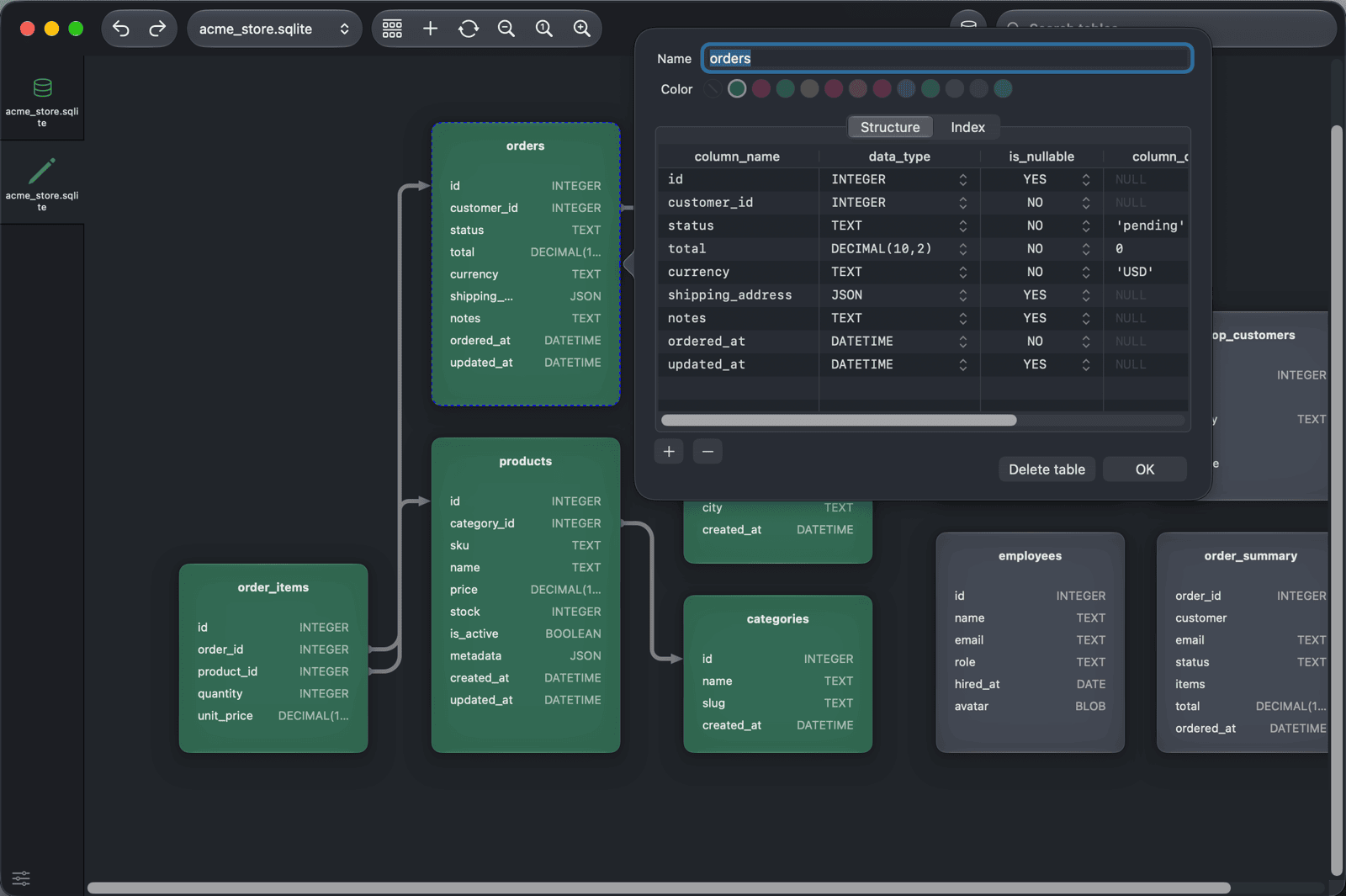
Click a table to open its settings:
- Name: rename the table.
- Color: change the table's color on the diagram.
- Structure: edit, add, or remove columns.
- Index: edit, add, or remove indexes (not available for every database).
- Delete table: mark the table for deletion.
Click OK to close the settings.
Right-click a table and choose Copy column name to copy the name of the column under the pointer, or Delete table.
Add a table
Click Add Table in the toolbar, or right-click an empty area of the canvas and choose Add table. TablePlus adds a new table named untitled_table_ followed by a number and opens it in the workspace. Click it on the diagram to rename it and add columns.
Create a foreign key
- Move the pointer to the middle of a table's edge until it turns into a crosshair.
- Drag to the table you want to reference and release.
- In the popover, choose the Columns of the first table and the Referenced Columns, and the On Update and On Delete actions.
- Click OK, or click outside the popover.
TablePlus adds the foreign key if you picked the same number of columns on both sides. Otherwise, it removes the line.
Remove a foreign key
Right-click the line and choose Delete. TablePlus marks the foreign keys between the two tables for deletion.