General
The Preferences window holds the settings that control how TablePlus behaves and looks.
To open it:
- Go to TablePlus > Preferences…
- Or press
⌘ + ,1
The window opens on the General tab. Use the toolbar at the top to switch between tabs.
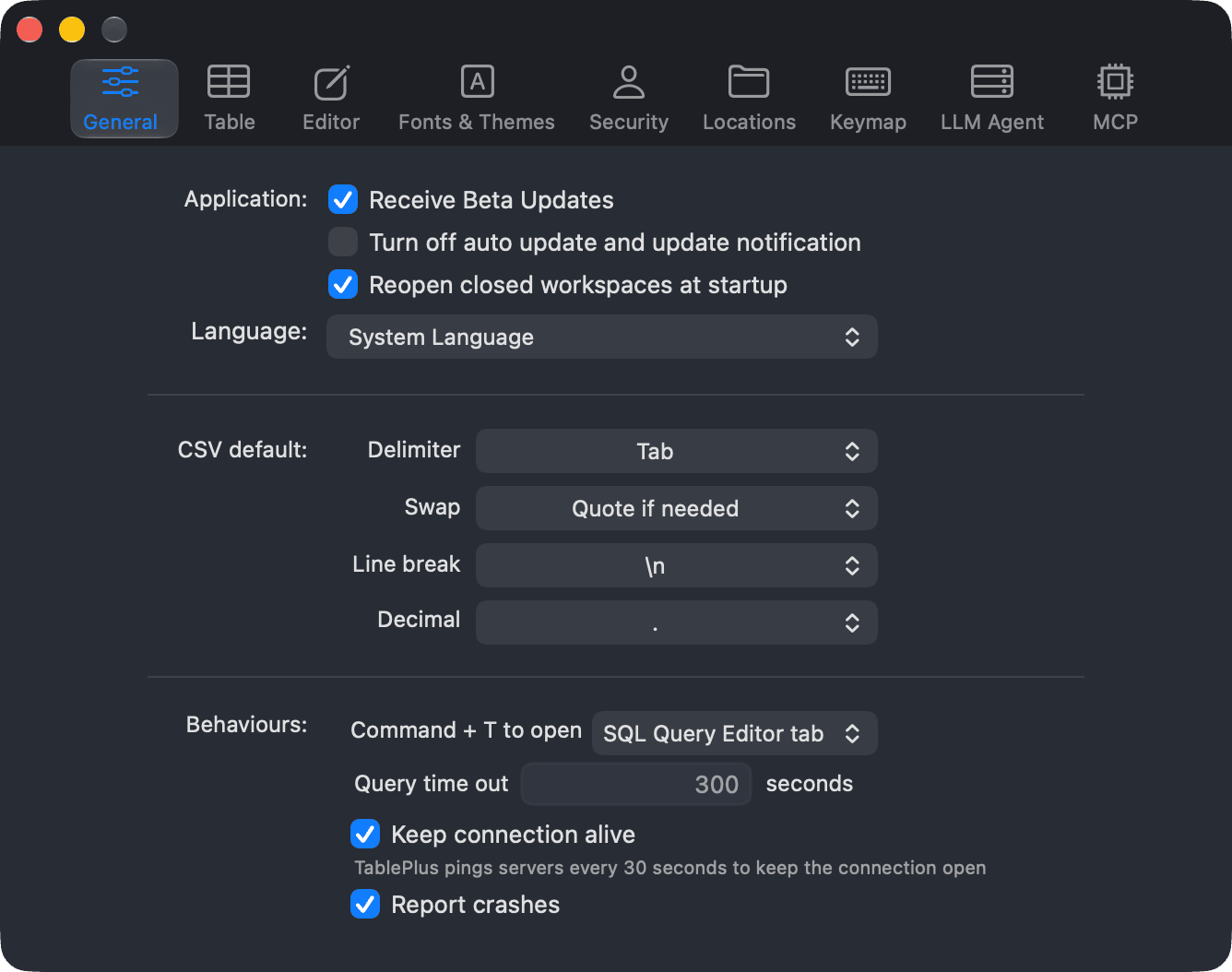
Preference tabs
| Tab | What it contains | Page |
|---|---|---|
| General | Updates, startup, language, CSV defaults, new tab behaviour, query time out, keep-alive, crash reports | Application, CSV File, Connections |
| Table | How table data is rendered and counted | Table Data |
| Editor | SQL Editor behaviour, indentation, key binding, query parameters | SQL Editor |
| Fonts & Themes | Themes, fonts, sizes and colors | Fonts & Colors |
| Security | Safe Mode defaults and passcode lock | Crash & Security |
| Locations | Where TablePlus stores its data | See Locations below |
| Keymap | Customizable shortcut keys | Keymap |
| LLM Agent | AI vendors and the Assistant tab | LLM Plugin |
| MCP | The built-in MCP server for AI clients | MCP Server |
General tab
The General tab is split into a few groups:
- Application: beta and auto updates, reopening workspaces, app language, what
⌘ + Topens, and crash reports. - CSV File: the default delimiter, quoting, line break and decimal symbol for CSV files.
- Connections: the query time out and keep-alive pings.
The settings of the Table and Editor tabs are described on Table Data and SQL Editor.
Locations
TablePlus stores its data on your Mac. To sync it between devices, you can point these folders to a private cloud folder such as iCloud Drive, Dropbox, Google Drive or OneDrive.
| Option | What it stores |
|---|---|
| Connections | Your connections and connection groups. |
| Queries/History | Saved queries and query history. |
| Others | Advanced filters, column positions and widths, and temporary files. |
Click the folder button next to a field to choose a folder, or type a path and press Return. Leave a field empty to use the default location. Click Restore Defaults to reset all three paths.
MCP
The MCP tab turns on the built-in MCP server so AI clients can work with your TablePlus connections. See MCP Server.
-
On Windows and Linux, use
Ctrl + ,. ↩︎