User Management
User Management lets you create database users, set their passwords and grant or revoke privileges without writing CREATE USER and GRANT statements by hand.
User Management is available for PostgreSQL, MySQL and MariaDB.
To open it, connect to the server and navigate to Tools > User Management.
You can also add a User button to the toolbar: right-click the toolbar, choose Customize Toolbar... and drag the User item in.
The window lists the existing users on the left. Select a user to see and change its settings in the tabs on the right.
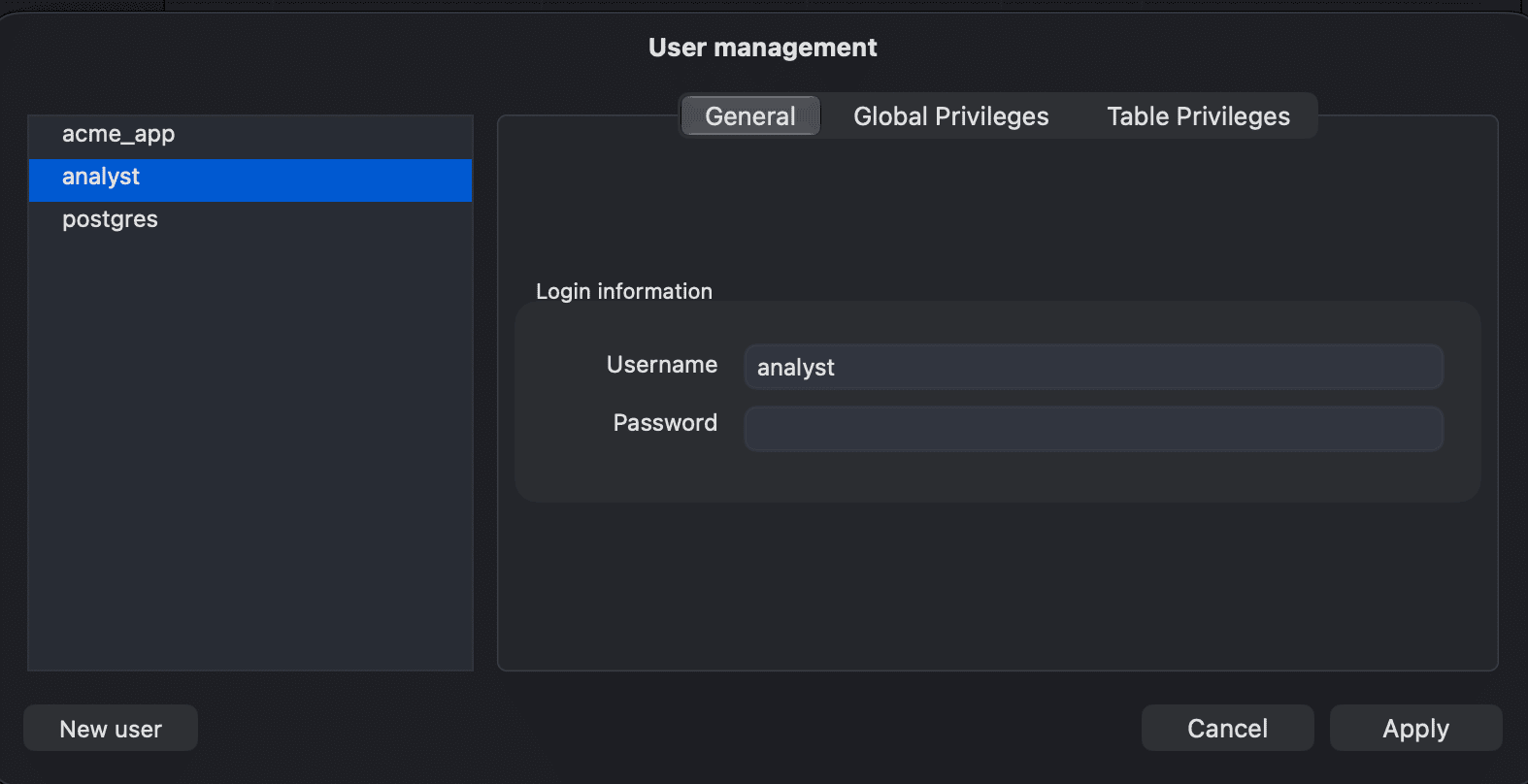
Create a user
- Click New user, or right-click the list and choose New.
- On the General tab, enter the Username and Password. For MySQL and MariaDB, also enter the Domain (host) the user connects from, for example
localhostor%. - Set the user's privileges on the other tabs (see below).
- Click Apply.
TablePlus runs the generated statements and adds them to the query history.
Grant privileges
PostgreSQL
- Global Privileges: the role attributes of the user: Can create databases, User is a superuser, replication (Can initiate streaming replication, put the system in and out of backup mode) and User bypasses every row level security policy.
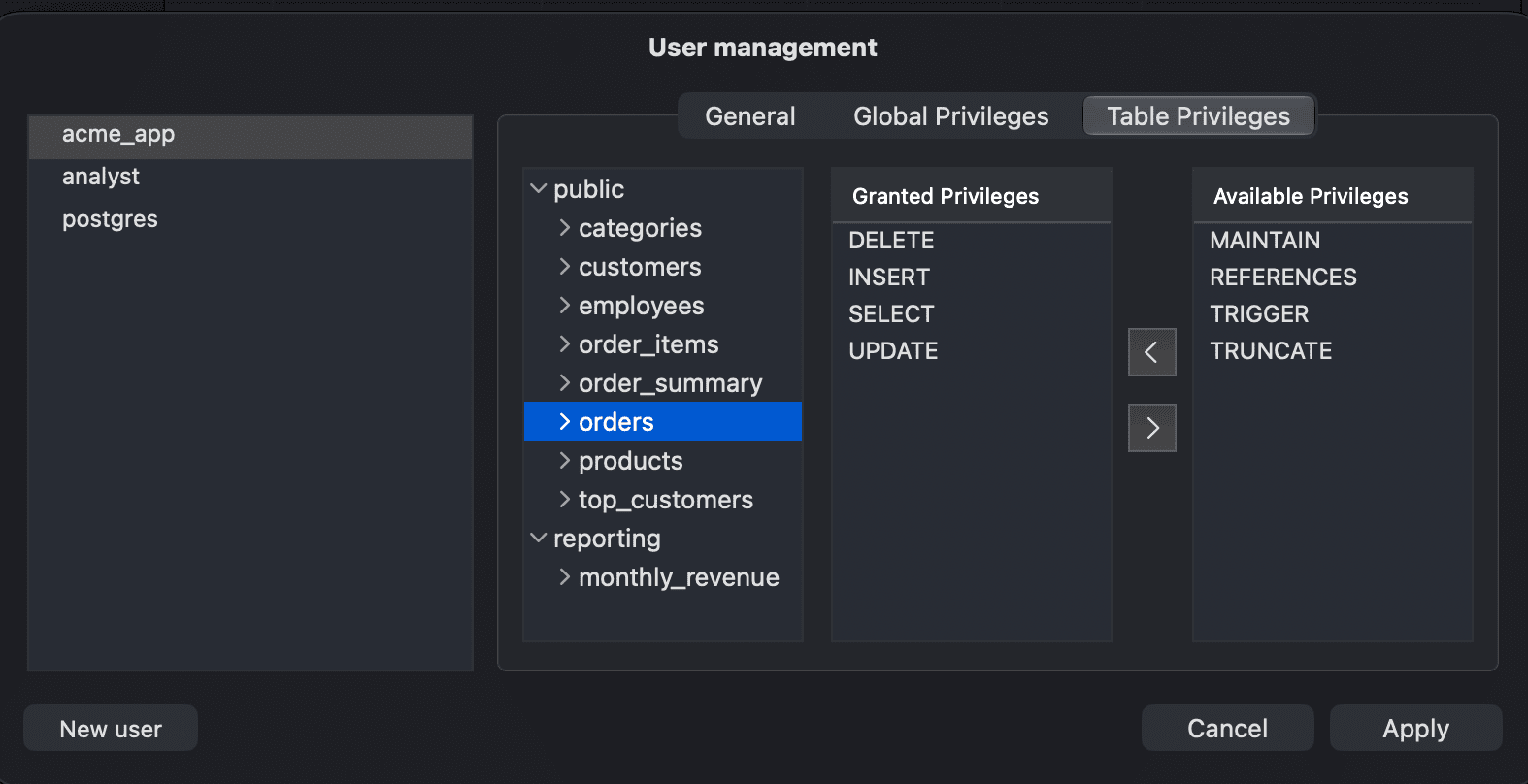
- Table Privileges: the schemas and tables of the current database. Select a schema, table or column, then move privileges between Available Privileges and Granted Privileges.
MySQL and MariaDB
- Global Privileges: privileges for all databases, grouped into Database and Tables, Views and Procedures, and Admin. Use Check all or Uncheck all to change them at once.
- Database Privileges: select a database, then move privileges between Available Privileges and Granted Privileges.
- Resource: resource limits for the account:
- Max updates: the number of updates the account can run per hour.
- Max connections: the number of times the account can connect to the server per hour.
- Max questions: the number of queries the account can run per hour.
Granting all global privileges gives the user the same power as the root user. In most cases, grant privileges only on the databases (or tables) the account needs.
Update or delete a user
Select a user in the list, change its password or privileges, and click Apply. To remove a privilege, move it back to Available Privileges (or uncheck it) and apply.
To delete a user, right-click it in the list and choose Delete, then click Apply.