Troubleshooting
Here are some common issues you might run into, and how to fix them.
The connection window is hidden
Issue: A new window opens and you can see it in Mission Control, but it doesn't show up on screen.
What to do: Quit TablePlus, open Terminal, and run the command below to remove the app's preferences file. This resets some app settings, but your connections are stored in a separate file and are not affected.
rm ~/Library/Preferences/com.tinyapp.TablePlus.plist
Can't connect over SSH
Issue: The connection settings are correct, but you can't connect through an SSH tunnel.
What to do: Turn on the SSH log and send it to us so we can troubleshoot faster:
-
Choose Help > Enable SSH & Bash Script Log.
-
Quit TablePlus.
-
Open Terminal and start TablePlus from there to see the log:
/Applications/TablePlus.app/Contents/MacOS/TablePlus -
Connect again, then send the log output to [email protected].
The package is damaged
Issue: When you install the app on macOS, you see the error "The package is damaged".
What to do: Your macOS version is probably not supported. TablePlus requires macOS 12 or newer, so update macOS first.
Error displaying table data
Issue: When you open a table, some characters aren't shown correctly.
What to do: Use the right encoding. Choose Connection > View Using Encoding, then choose the encoding that matches the table.
The query results are hidden
Issue: You run a query in the SQL editor, but the results pane doesn't show up.
What to do: Press ⌃ + ` or choose View > Toggle sidebars > Toggle Query Results Pane. You can also drag the bottom border of the query editor up.

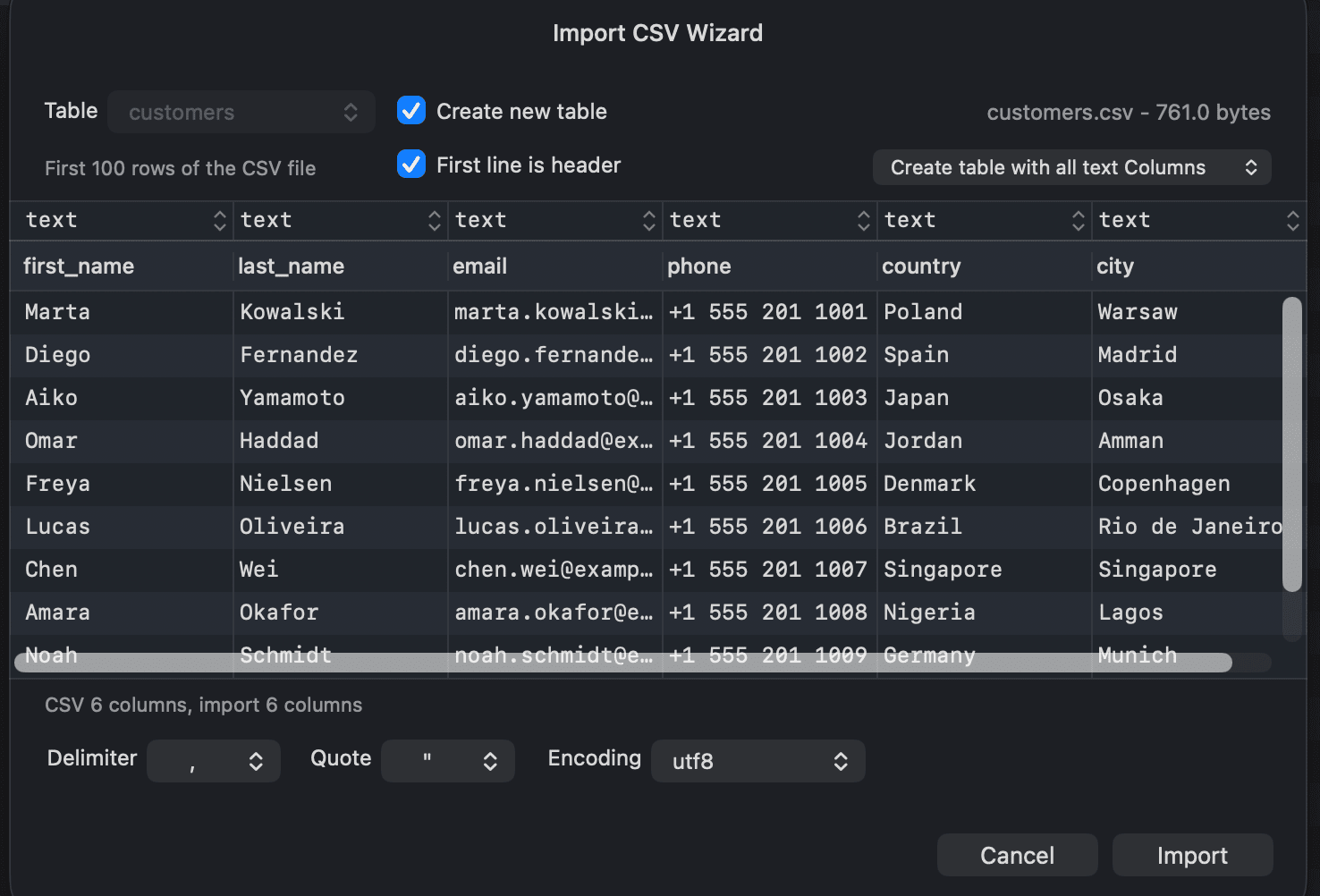
Can't import CSV
Issue: You import data from a CSV file, but errors stop the import before it finishes.
What to do: There are usually two causes:
- Wrong encoding: choose another Encoding in the Import CSV Wizard and try again.
- Mismatched data types: check your data before importing and make sure the data types match the table columns.
To make it easier, you can import into a new table where every column is text, which works almost every time. In the Import CSV Wizard, check Create new table and choose Create table with all text Columns.
Invalid license
Issue: You have a valid license key, but activating it shows "The license key is invalid".
What to do: This often happens when the key is pasted more than once. Clear the field, copy the exact license key from your email, and paste it once.
The AI assistant doesn't answer
Issue: You send a message in the Assistant tab, but you get an error or no answer.
What to do:
- Check that the provider has an API key in Preferences > LLM Agent. Ollama needs a value in API Key too, even though it doesn't use it.
- For Codex CLI, check the Status in Preferences > LLM Agent > Codex CLI. If Codex isn't found, enter the full path to the
codexexecutable. - For a custom agent, click Test Agent to check that TablePlus can start it.
- Make sure your network doesn't block the provider.
See LLM Plugin for details.