Plugin
TablePlus focuses on the core features most people need. To go further, you can extend it with plugins written in JavaScript, either installed from the plugin list or written yourself.
The plugin feature is still under development.
Manage plugins
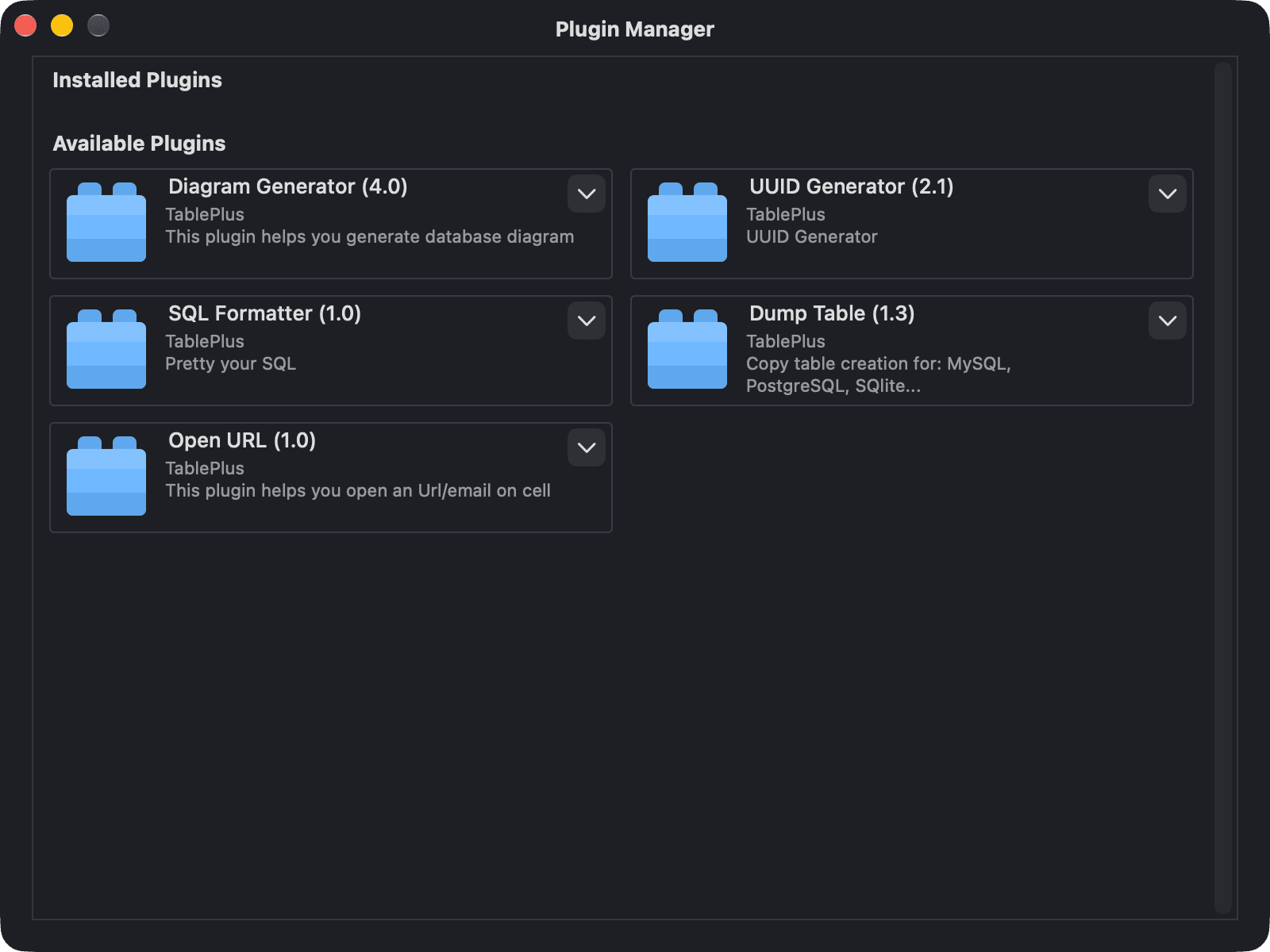
To open the Plugin Manager, choose Tools > Manage Plugins... or press ⌘ + L.
The Plugin Manager has two sections:
- Installed Plugins: the plugins you have installed. Click the settings button on a plugin to Reinstall it (or Update it when a new version is available), open its Website, or Remove it.
- Available Plugins: plugins you can install. Click Install to add one, or Website to learn more about it.
Install a plugin from a file
A TablePlus plugin is a folder with the .tableplusplugin extension. To install one you got from somewhere else, double-click it (or open it with TablePlus), then confirm the installation.
Plugins can run statements on your database. Only install plugins that you wrote yourself or that come from a source you trust.
Use a plugin
Depending on how a plugin is built, its commands appear in one or more of these places:
- the Tools menu
- the context menu of a data cell in the table data view
- the context menu of an item (table, view, ...) in the left sidebar
A plugin can also define its own shortcut key for a command.
Built-in alternatives
Some tasks that used to need a plugin are now built into TablePlus:
- Format SQL: select statements in the SQL editor and press
⌘ + Ito beautify them or⌘ + Shift + Ito uglify them. See Format query. - Copy table scripts: right-click a table in the left sidebar and choose Copy Script As > Creation, Drop, Truncate, or Select top 100.