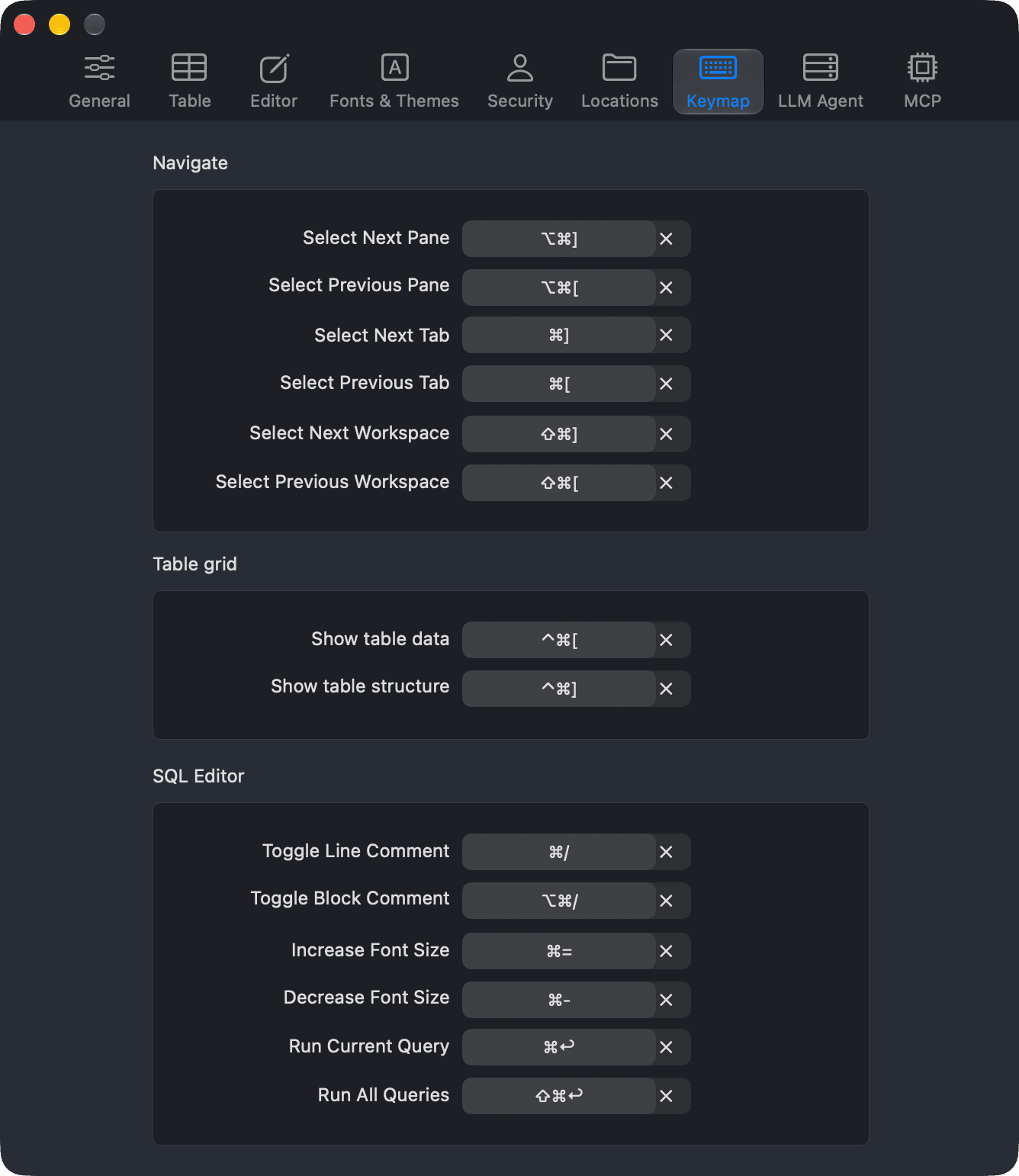
This page lists the default shortcut keys in TablePlus for macOS, grouped by where you use them.
You can change some shortcuts in Preferences > Keymap : select next/previous pane, tab, and workspace, show table data/structure, toggle line/block comment, increase/decrease font size, and run current/all queries. See Keymap .
Preferences > Keymap Application
Shortcut
Action
⌘ + ,Open Preferences
⌘ + NOpen the connection list (New Workspace)
⌘ + OOpen a file
⌘ + Shift + OOpen a new SQL Viewer
⌘ + ?Report a bug or send feedback
⌘ + HHide TablePlus
⌘ + QQuit TablePlus
Workspace
Shortcut
Action
⌘ + POpen anything
⌘ + KOpen a database
⌘ + Shift + KOpen a connection
⌘ + EOpen a new SQL query editor tab
⌘ + TOpen a new tab
⌘ + WClose the current tab
⌘ + SCommit changes
⌘ + Shift + PPreview changes as SQL statements
⌘ + Shift + DeleteDiscard changes
⌘ + ZUndo
⌘ + Shift + ZRedo
⌘ + RReload the workspace
⌘ + ⌥ + RReload the current tab
⌘ + Shift + RReconnect
⌘ + ⌥ + .Disconnect
⌘ + .Open the process list
⌘ + Shift + EExport tables
⌘ + LOpen the Plugin Manager
Navigation
Shortcut
Action
⌘ + ]Select the next tab
⌘ + [Select the previous tab
⌘ + 1 to ⌘ + 9Select the tab at that position
⌘ + ⌥ + ]Select the next pane
⌘ + ⌥ + [Select the previous pane
⌘ + Shift + DSplit the pane to the right
⌘ + Shift + ]Select the next workspace
⌘ + Shift + [Select the previous workspace
⌘ + Shift + \Show all workspaces
⌘ + ⌃ + ←Go back
⌘ + ⌃ + →Go forward
⌘ + ⌃ + [Show table data
⌘ + ⌃ + ]Show table structure
Shortcut
Action
⌘ + 0Toggle the left sidebar
SpaceToggle the right sidebar (row detail)
⌘ + ⌃ + CToggle the console log
⌃ + `Toggle the query results pane
⌘ + Shift + FSearch items in the left sidebar
⌘ + ⌃ + FEnter or exit full screen
Shortcut
Action
SpaceOpen the selected item
Delete or ⌘ + DeleteDelete the selected items
⌥ + DeleteTruncate the selected tables
Table data
Shortcut
Action
⌘ + IAdd a new row
⌘ + DDuplicate the selected rows
⌘ + CCopy the selected rows
⌘ + Shift + CCopy the selected cells
⌘ + VPaste rows
⌘ + Shift + VPaste to the selected cells
DeleteDelete the selected rows
Return or TabEdit the selected cell
SpaceToggle the row detail in the right sidebar
⌘ + ReturnOpen the selected cell in Quick Look
Middle-click a cell
Open the cell in Quick Look
⌥ + Return or ⌥ + Click a cellOpen the quick edit menu (Set Value )
⌘ + ↑Select the first row
⌘ + ↓Select the last row
⌘ + →Go to the next page
⌘ + ←Go to the previous page
⌘ + FShow or hide the filters
⌘ + Return (in the filter bar)Apply all checked filters
⌘ + ⌥ + FChoose the columns to show
EscDeselect all rows or close Quick Look
SQL query editor
Shortcut
Action
⌘ + ReturnRun the current statement (or the selection)
⌘ + Shift + ReturnRun all statements
⌘ + .Cancel the running query
⌘ + IBeautify the selected SQL
⌘ + Shift + IUglify the selected SQL
⌘ + /Toggle line comment
⌘ + ⌥ + /Toggle block comment
⌘ + =Increase the font size
⌘ + -Decrease the font size
⌘ + FFind
⌘ + ⌥ + FFind and replace
⌘ + GFind next
⌘ + Shift + GFind previous
⌘ + Shift + SSave the SQL to a file
EscShow autocomplete suggestions, or hide them
⌃ + N / ⌃ + PSelect the next / previous suggestion
Return or TabAccept the selected suggestion
When the query editor isn't focused, ⌘ + Return opens a new SQL query editor tab, like ⌘ + E.
Multiple carets
Shortcut
Action
⌘ + ClickAdd or remove a caret
⌥ + DragSelect a rectangular block of text
⌃ + Shift + ↑Add a caret on the line above
⌃ + Shift + ↓Add a caret on the line below
⌘ + DSelect the next occurrence of the current word
⌘ + ⌃ + GSelect all occurrences of the current word
EscGo back to a single caret
See Multiple carets for more.