Search in Database
Search in Database looks for a value in the data of every table in the current database, not just in table names. Use it when you know a value, such as an email address or an order number, but not which table holds it.
Start a search
- Open the search panel in one of these ways:
- Navigate to Tools > Search in Database...
- In the left sidebar, click the settings button next to the search box and choose Search in Database...
- Type the value in Search in database...
- Choose how to match it: Contains, Not contains, =, Has prefix, or Has suffix.
- Choose the scope:
- Search all items: search every table.
- Select items: search only the tables you pick. Type table names in the field that appears below to add them.
- Click Start Search.
TablePlus goes through the tables one by one and checks every column. Each table with matches appears in the results with the number of matching rows. When the database has several schemas, the results are grouped by schema.
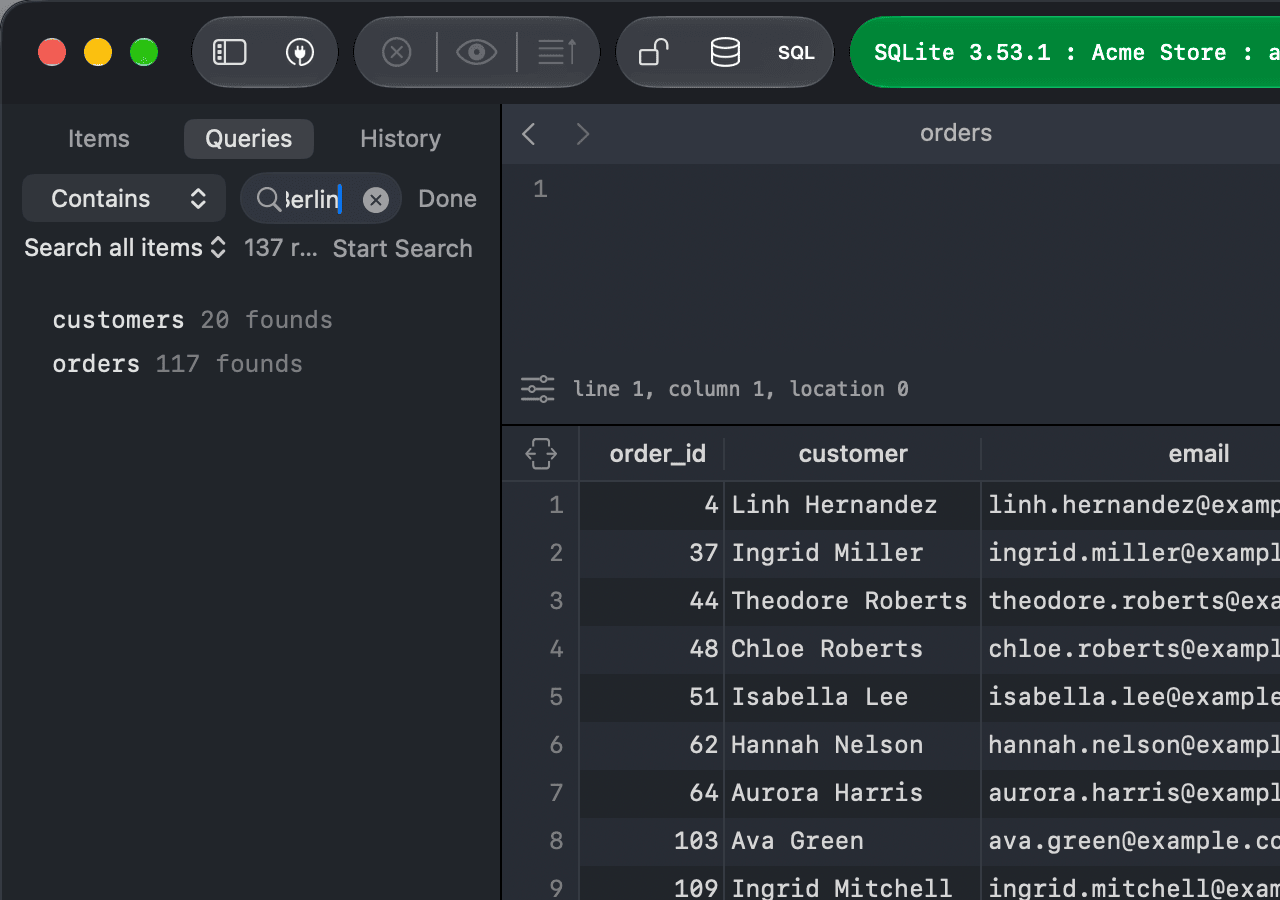
While the search runs, the button changes to Pause. Click it to pause the search, and click Resume to continue.
Searching a large database runs a query on every table, which can take a while and adds load to the server. Use Select items to search only the tables you need.
Open the results
Click a table in the results to open it with a filter on Any column that matches your search, so you see only the matching rows. See Filter.
Click Done to close the search panel and go back to the sidebar.