Query Parameters
Query parameters let you write a query with placeholders and fill in their values when you run it, for example:
SELECT * FROM orders
WHERE status = :status AND total > :min_total;
When you run this query, TablePlus asks for the values of :status and :min_total, replaces the placeholders and sends the final query to the server.
Enable query parameters
Query parameters are turned off by default. To turn them on, click the SQL Editor settings button (gear icon) at the bottom left of the editor and choose Query params options > Enable query params.
You can also turn them on in Preferences > Editor.1
Fill in the values
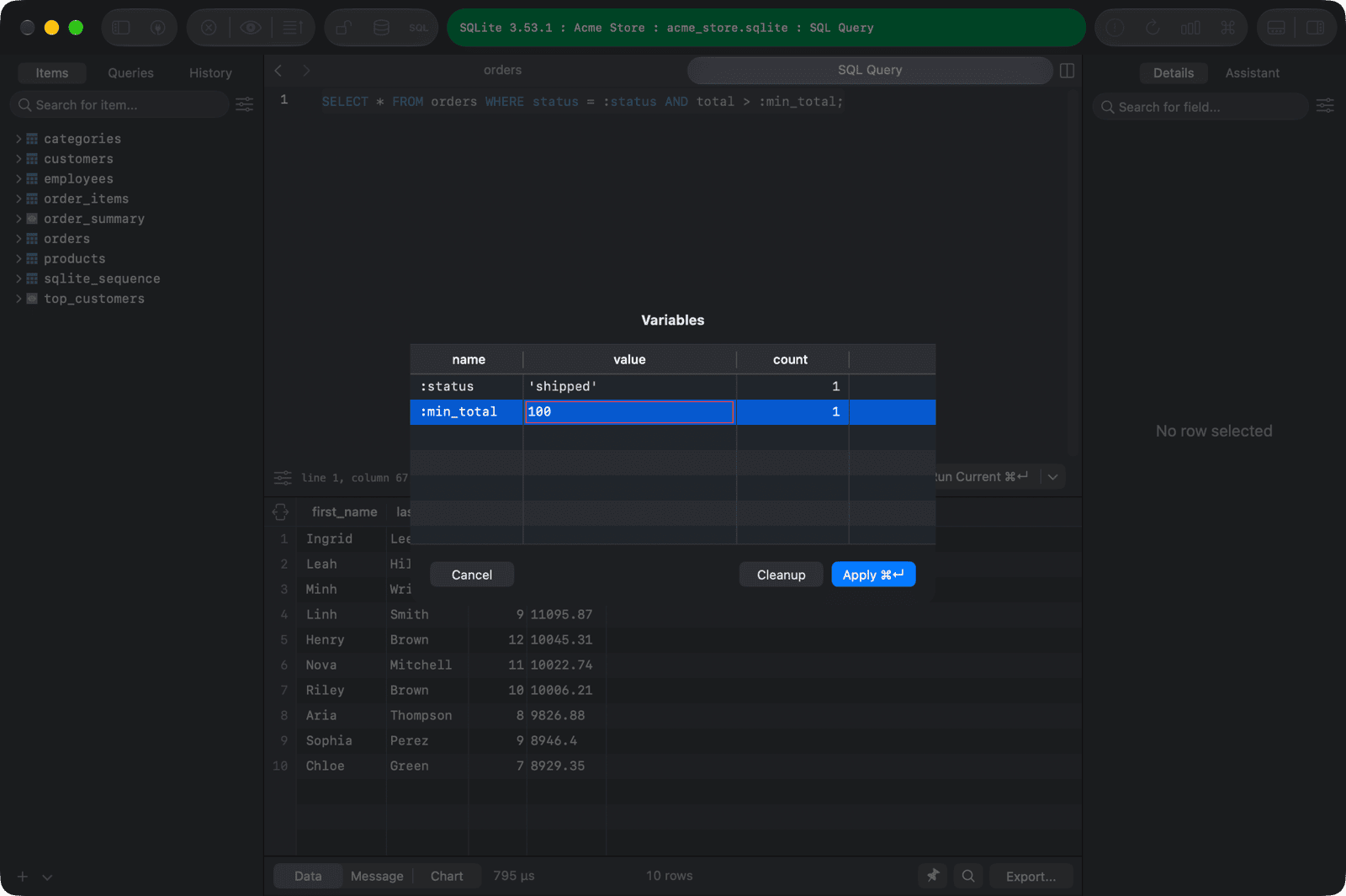
When you run a query that contains parameters, the Variables window opens with one row per parameter. Enter the values and click Apply (⌘ + Return).
The values are inserted into the query exactly as you type them, so add quotes for strings, for example 'shipped'.
TablePlus remembers the values you entered and fills them in the next time. To remove saved variables you no longer use, select them and click Cleanup.
Change the parameter format
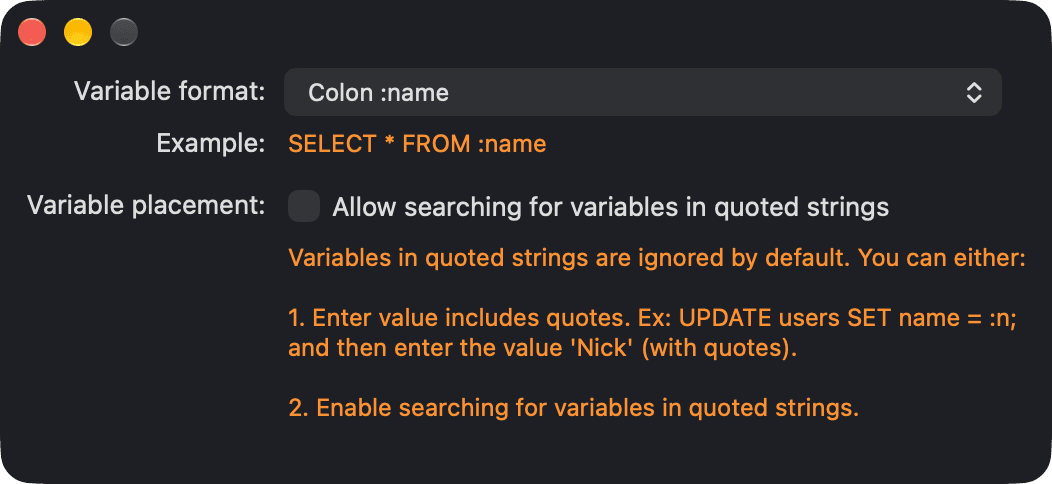
Choose Query params options > Change query params format to pick the placeholder syntax. The window shows an example of the selected format.
| Format | Example |
|---|---|
| Colon | SELECT * FROM orders WHERE id = :id |
| Percent | SELECT * FROM orders WHERE id = %id% |
| Question mark | SELECT * FROM orders WHERE id = ? |
| Dollar braces | SELECT * FROM orders WHERE id = ${id} |
| Dollar | SELECT * FROM orders WHERE id = $id |
| Double braces | SELECT * FROM orders WHERE id = {{id}} |
By default, TablePlus ignores placeholders inside quoted strings. To find them there too, turn on Allow searching for variables in quoted strings.
Looking for the comments that draw a chart from a query, such as
-- tableplus barchart x: a, y: b? See Working With Query Results.
-
On Windows and Linux, open Preferences with
Ctrl + ,. ↩︎