Safe mode
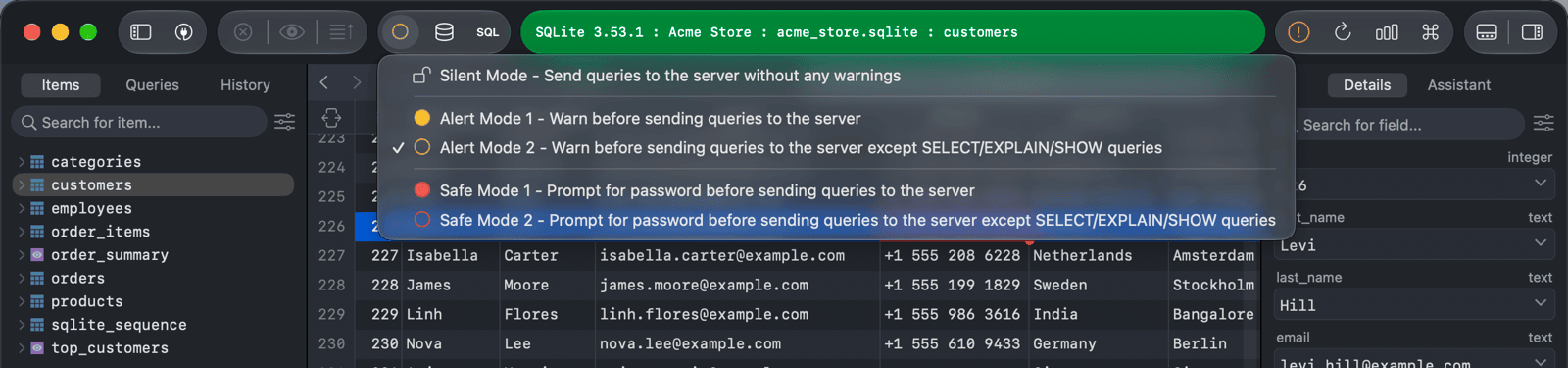
Safe Mode decides how TablePlus warns you before it sends queries to the server. Each connection has its own level:
| Level | Description |
|---|---|
| Silent Mode | Send queries to the server without any warnings (default) |
| Alert Mode 1 | Warn before sending queries to the server |
| Alert Mode 2 | Warn before sending queries to the server, except SELECT/EXPLAIN/SHOW queries |
| Safe Mode 1 | Prompt for the password before sending queries to the server |
| Safe Mode 2 | Prompt for the password before sending queries to the server, except SELECT/EXPLAIN/SHOW queries |
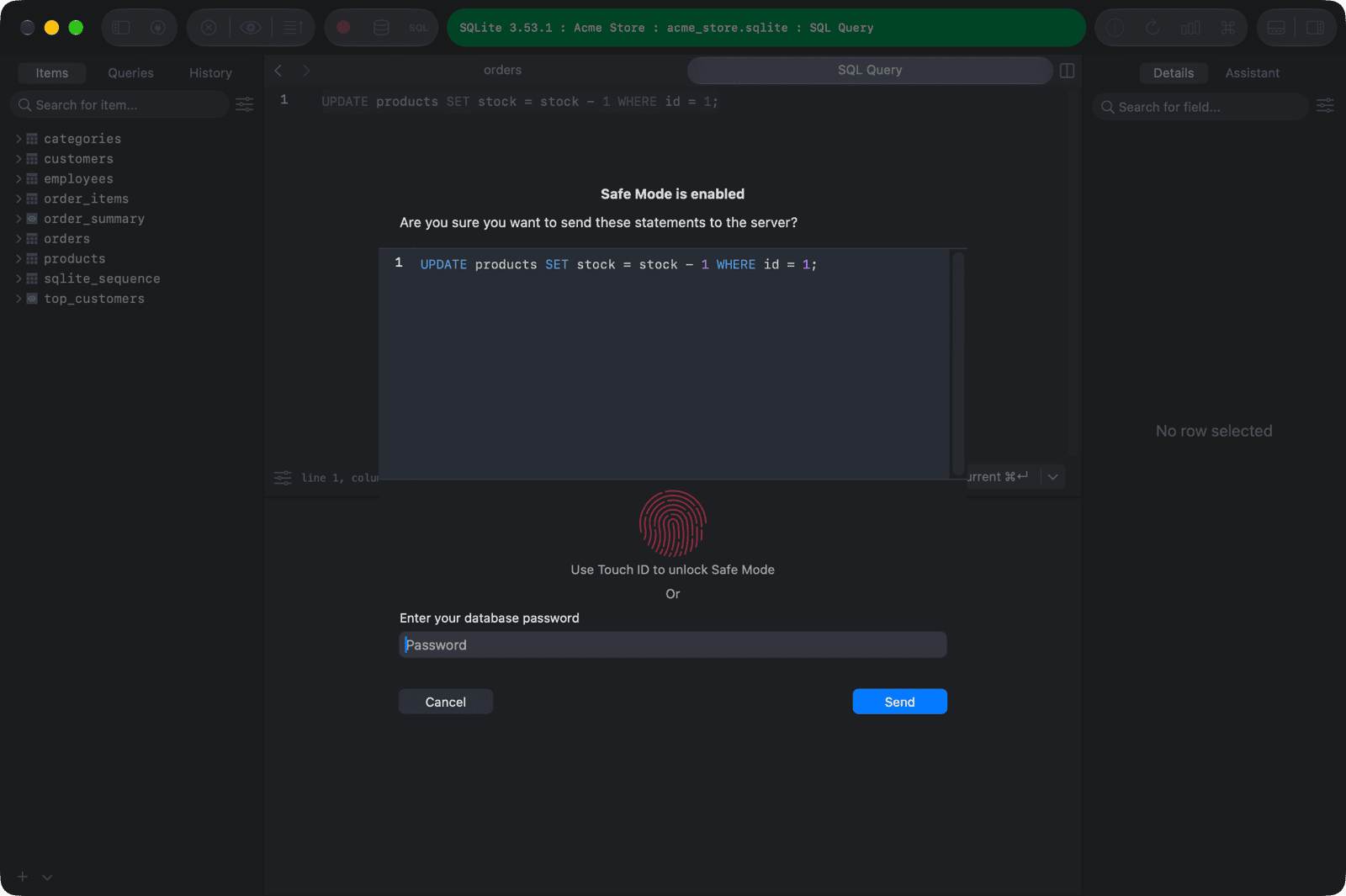
In an Alert Mode, TablePlus shows the statements and asks you to confirm with Send. In a Safe Mode, you also have to enter the database password.
Change the level
- Click the Safe Mode button in the toolbar and choose a level. The button's icon shows the current level.
- Or set Safe Mode in the connection's settings.
When the connection is currently in Safe Mode 1 or 2, you have to enter the database password to change the level.
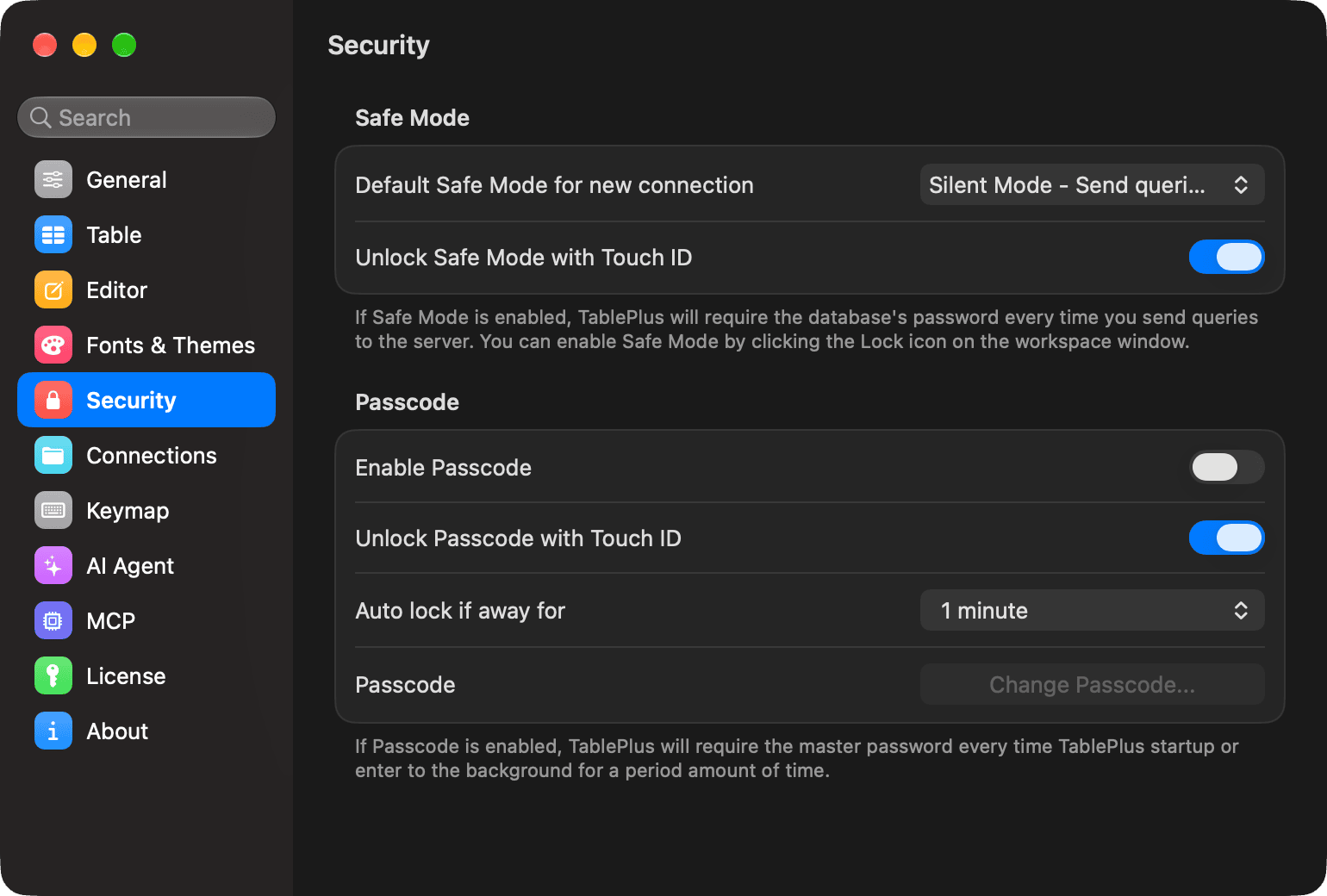
To choose the level that new connections start with, go to Settings > Security and set Default Safe Mode for new connection.
UPDATE and DELETE without WHERE
An UPDATE or a DELETE without a WHERE clause changes or deletes every row of the table. TablePlus points these statements out before they run:
- In Silent Mode, TablePlus shows them in a No WHERE clause sheet, with the statements highlighted. Click Run (or Save for changes made in the table) to run them anyway, or Cancel. Cancel is the default button. To turn this off, go to Settings > Security and turn off Warn before UPDATE or DELETE without WHERE.
- In an Alert Mode or a Safe Mode, the confirmation also shows a note about them, whether or not that setting is on.
The warning covers the queries you run in the SQL editor and the changes you save from the table. It doesn't cover queries run by an AI agent or an MCP client: for those, see Query approval. It works on MySQL, MariaDB, PostgreSQL, Amazon Redshift, CockroachDB, Greenplum, Vertica, SQLite, libSQL, Cloudflare D1, SQL Server, Oracle, Snowflake, DuckDB and Amazon Athena.
Unlock with Touch ID
Instead of typing the database password, you can unlock Safe Mode with Touch ID or your Mac's password:
- Go to TablePlus > Settings… (Preferences… on macOS 12), or press
⌘ + ,. - Click Security.
- Turn on Unlock Safe Mode with Touch ID.